GTA 6 stream widgets for OBS: what each one does
Also in:Français
The GTA 6 Stream Widgets Pack is now on the shop. It is not a full stream pack with screens and a webcam frame for every scene. It is a set of 6 animated widgets that you add on top of your GTA 6 live in OBS: a wanted level, a loot goal, a goal camera, alerts, a social bar and two counters. This guide tells you what each widget does on stream, how the hotkeys and Streamer.bot fit in, and how to set it up the first time.
What the GTA 6 Stream Widgets Pack is
The product page describes it as 6 animated OBS widgets for your GTA 6 live. One OBS script drives them all with your hotkeys. If you use Streamer.bot, it can move them on its own when someone subs, follows or raids. The files are transparent 1080p videos and an OBS scene collection in English and French, and the page says they are ready in 5 minutes.
It is sold as one option, the Full Pack with the 6 widgets, at €19.99. You do not pick modules here: you get the whole set.
The 6 widgets, one by one
Wanted level
The widget most people will recognise. 3D stars light up one by one, and police lights start when you reach 6 stars. The page lists 3 themes for it. On stream, it works well for a chase, a heist that goes wrong, or a running joke with your chat about how much trouble you are in.
Loot goal
A money sack that fills up, then shows GOAL REACHED. Use it for a goal your viewers can push: a sub goal, a follower goal, or a target for the session.
Goal camera
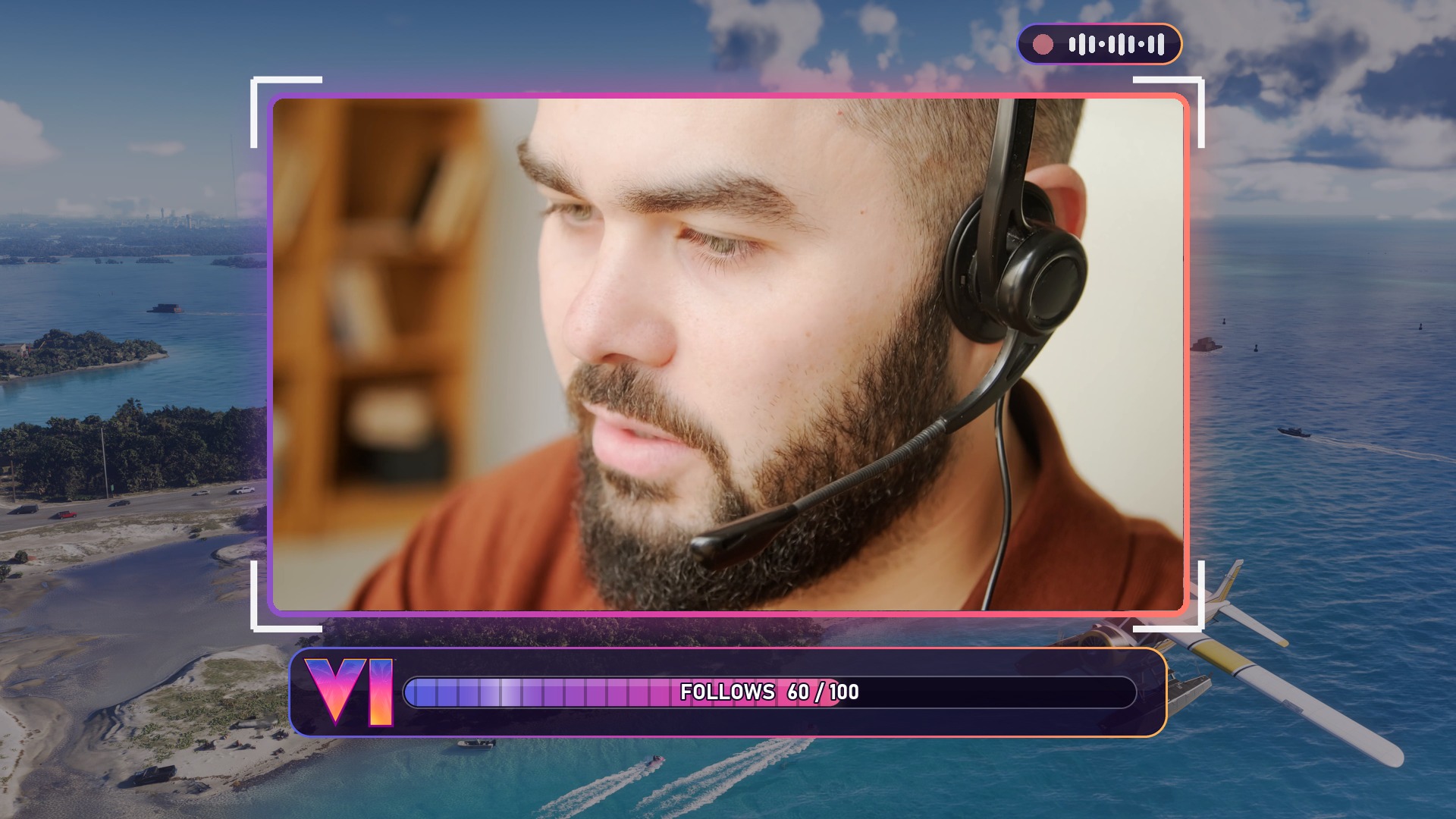
An animated camera frame with its own goal gauge. Your face and the goal sit in the same place, so viewers see both without looking around the screen.
Alerts in two sizes
A small alert for follows and subs, and a full screen alert for raids. The small one does not cover your game during a mission. The big one gives a raid the moment it deserves.
Social bar
Your name, then Twitch, YouTube, TikTok and X. It tells new viewers where else to find you, without a link in every chat message.
Knockout and arrest counters
Counters for the funny moments of your live. Each time you get knocked out or arrested, the number goes up. It is the kind of detail your chat will ask you to update.
Hotkeys or Streamer.bot: how the widgets move
There are two ways to drive the widgets.
- Hotkeys, with the OBS script. One script handles every widget. You give each action a key in OBS, then you press it during the live: one more star, one more arrest, show the loot goal.
- Streamer.bot, if you already use it. The page says Streamer.bot can move the widgets on its own with subs, follows and raids. You do not press anything: the event on your channel triggers the widget.
If you stream from a single PC and you are new to this, start with the hotkeys. You can add Streamer.bot later, once the widgets look right.
Step by step: your first setup
- Buy the pack on the GTA 6 Stream Widgets Pack page. Payment goes through Stripe, directly on nano-crea.com, and the file is available as soon as the payment is confirmed.
- Unzip the download in a folder you will keep, for example in your documents. OBS stores the path of each video. If you move the folder later, the sources go blank.
- Open OBS Studio and import the scene collection, in English or in French. The setup guide in the download walks you through it.
- Add the OBS script from the pack in the scripts window of OBS.
- Open the hotkey settings of OBS and give a key to each widget action. Pick keys you do not use in the game.
- Put your game capture under the widgets in the list of sources. The widgets are transparent videos: they must sit above the game to show.
- Choose the wanted theme you like among the 3, and place the widgets where they do not cover the minimap or the text of the game.
- Do a private test: press every hotkey once, and check each widget on a recording before you go live.
- If you use Streamer.bot, connect it last, once the hotkeys work.
Where to place the widgets on a GTA 6 stream
GTA 6 has its own HUD. Keep the corners where the game shows its map and its info clear. A simple layout: the goal camera on one side, the wanted stars near the top, the social bar along the bottom edge. Show the counters only when they mean something, for example during a chaotic session. Fewer widgets on screen at the same time read better than all 6 at once.
Widgets pack, stream pack or editing pack
These three do different jobs:
- A GTA 6 stream pack dresses your whole live: webcam frame, starting soon and BRB screens, alerts, in one style.
- The Stream Widgets Pack adds game style widgets on top. The page of each GTA 6 stream pack shows it in a "Complete your setup" block, with a button to add it to your order.
- The GTA 6 Editing Pack is for the videos you cut after the live. Its page lists 6 options, from titles to color LUTs.
For the general OBS steps, the GTA 6 overlay guide and the GTA 6 alerts guide go into more detail. To add a chat command that tells viewers how the counters work, try the free chat commands generator.
Questions we get
Does it work with Streamlabs Desktop?
The product text names OBS Studio. If you use other software, contact support with your setup before buying.
Do I need Streamer.bot?
No. The OBS script and your hotkeys are enough. Streamer.bot is an option if you want the widgets to react to subs, follows and raids on their own.
Is the scene collection in French?
Yes. The page says the scene collection comes in English and in French.
Is it included in a membership?
Memberships cover eligible packs while they are active. Compare what each plan includes on the membership page.
What if something does not work?
Write to support through the contact page, with your OBS version and what you see. Refunds are handled case by case, the terms are linked on the product page.
NanoCrea is an independent shop, not affiliated with Rockstar Games or Take-Two Interactive.